Using the Factory Content assets
You can add Factory Content assets to your project in Kanzi Studio. For a list of the Factory Content components and materials, see Factory Content assets.
Using Factory Content components in your project
To use Factory Content components in your project:
-
In the Assets window in the Source dropdown menu select Factory Content.
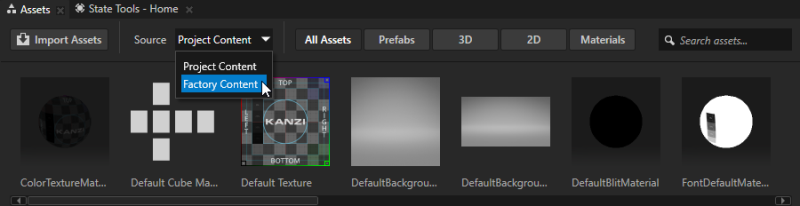
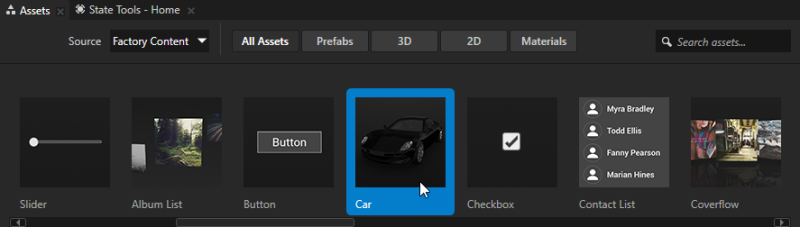
- From the Assets drag the component you want to use in your project, and drop it on the Preview, or on a node in the Project, to use that component.
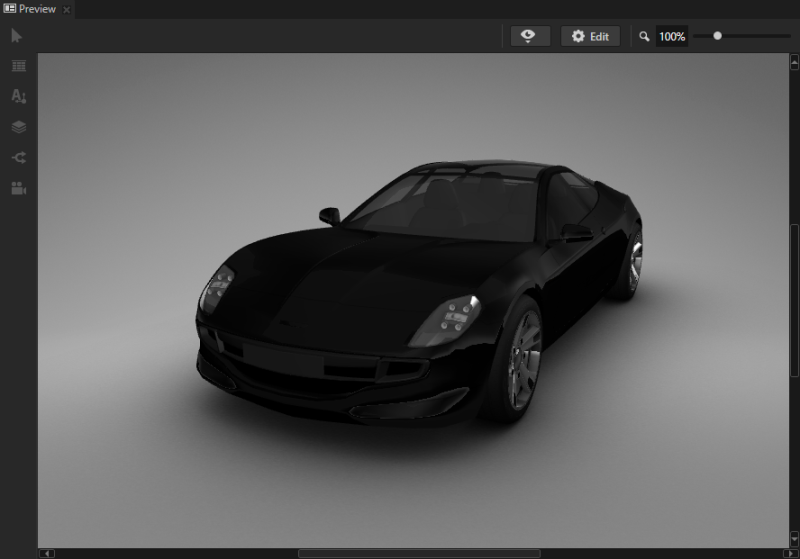
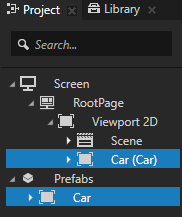
For example, drag and drop the Car component on the Preview. When you drop a Factory Content component on the Preview or on a node in your project, Kanzi instantiates the component as a prefab in the scene graph, and adds the component to the Project > Prefabs.
Using Factory Content materials in your project
To use Factory Content materials in your project:
- In the Assets window in the Source dropdown menu select Factory Content.
- In the Assets window select Materials to view only the Factory Content materials.
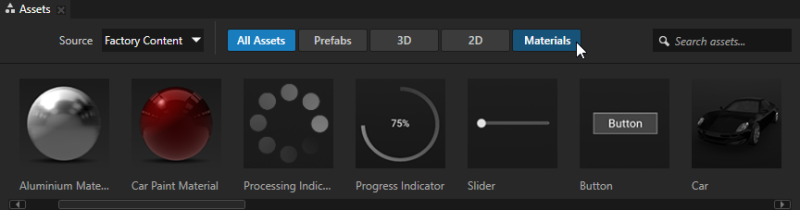
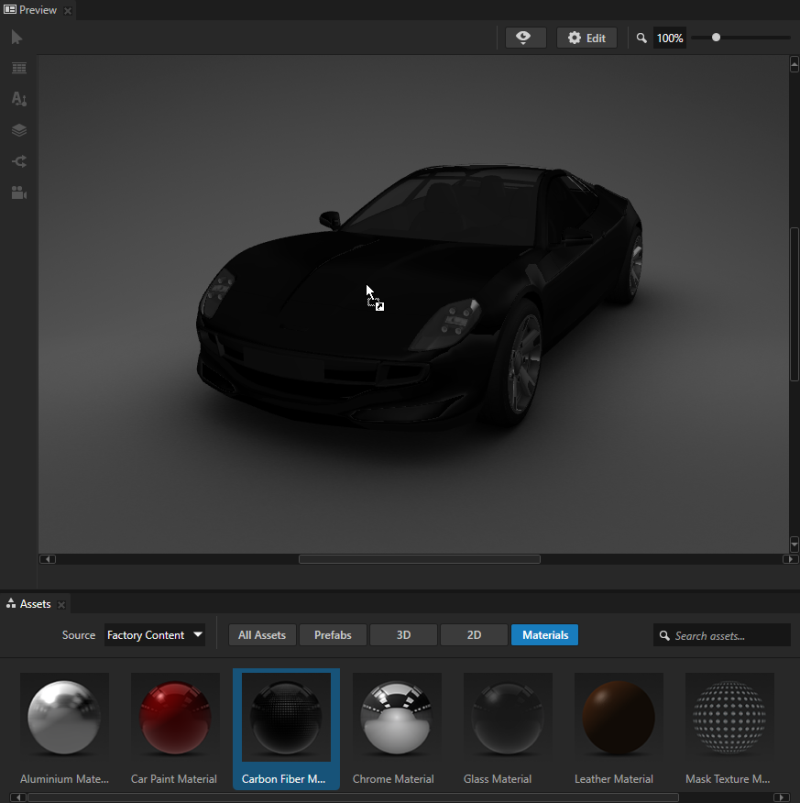
- From the Assets drag the material you want to use in your project, and drop it on the Preview window, or on a node in the Project, to use that material.
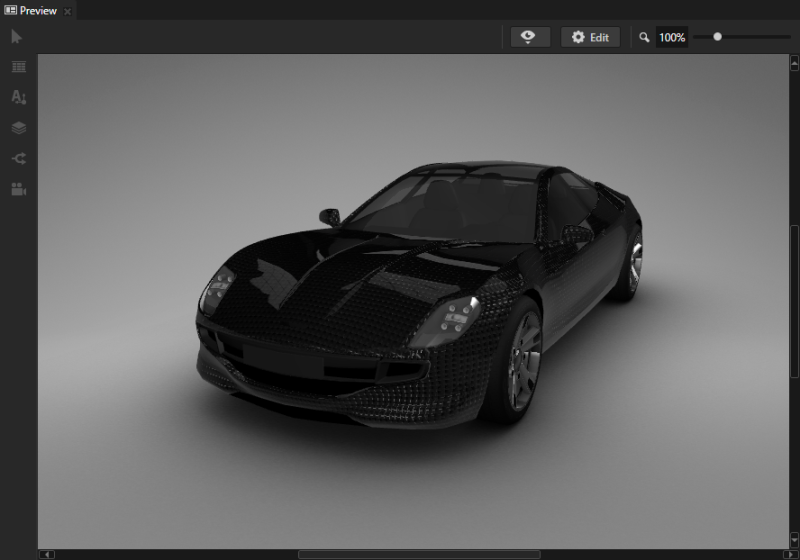
You can use a different material on different clusters of 3D objects. For example, from the Assets either drag and drop a material on the car body in the Preview, or drag and drop the material on the Car > car > RootNode > Car > CarBody node to use that material for the car body. For example, use the Carbon Fiber Material.
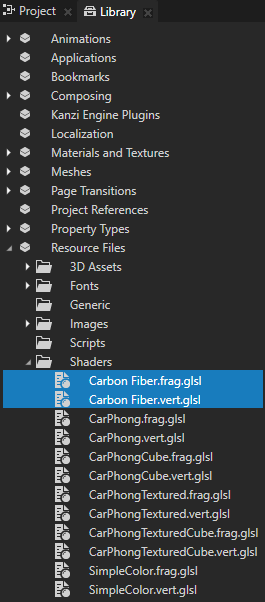
When you drop a material on the Preview or on a node in the project, Kanzi adds that material to the project resources. You can see the materials stored in the project resources in Library > Resource Files > Shaders.
See also
Factory Content assets
3D content
Material types and materials
Using prefabs

Open topic with navigation